
Author: Roy Roeven
Best STL Splitters in 2026: 4 Tools Compared
A 400 mm helmet does not care that your bed is 256 mm. You still have to get it onto the printer in pieces.
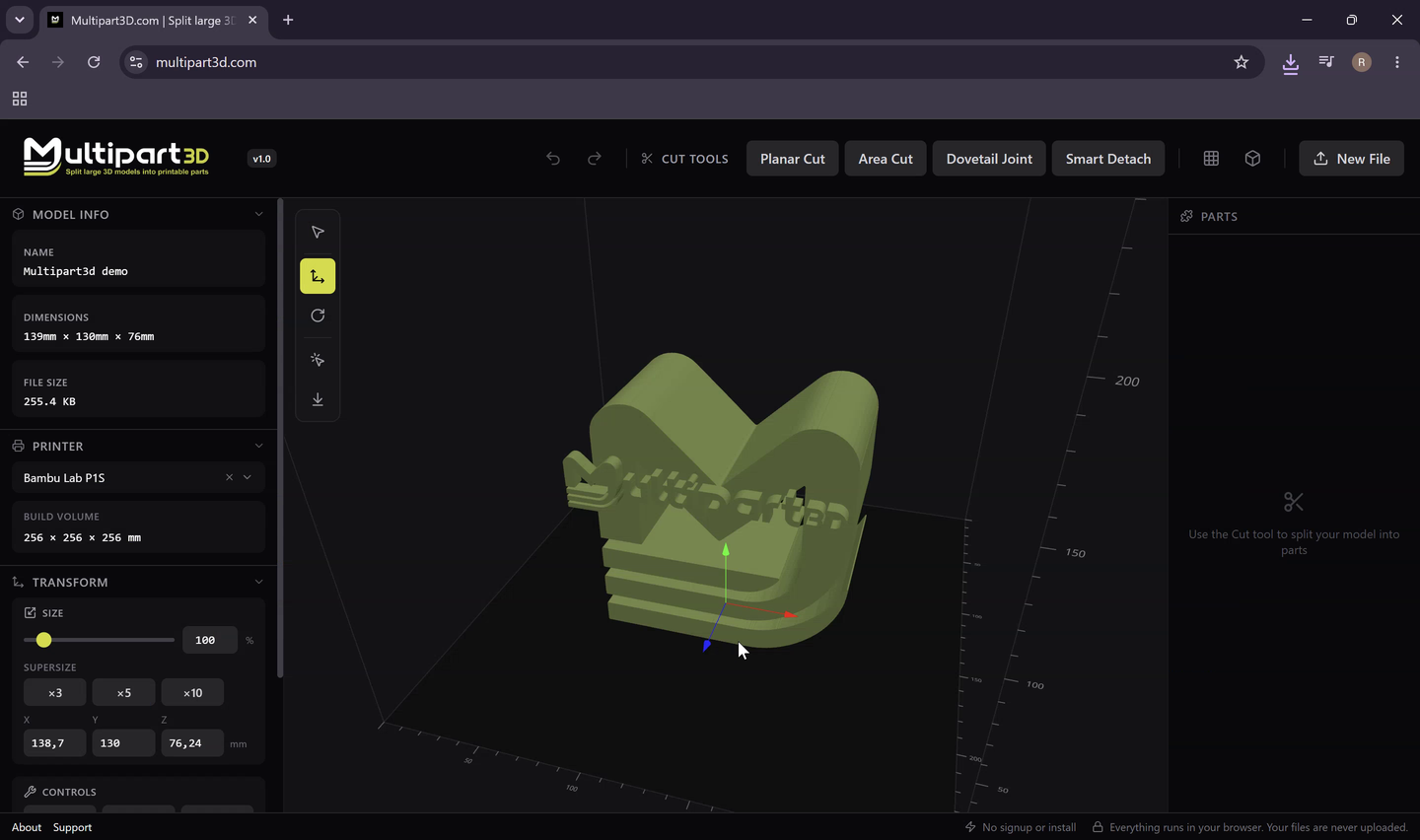
We built Multipart3D, so this is not an independent review of our own product. What we can do is test it alongside other STL splitting tools on the same jobs and be clear about where each one performs better or worse.
For this STL splitter comparison we tested four tools on common 3D-printing jobs: splitting an oversized model to fit a 256 mm bed, controlling where the cut lands, adding joints so the parts reassemble, loading painted 3MF files and exporting printable parts. Multipart3D, 3dsplitter.com and stl-splitter.com run in the browser; Split3r is a paid desktop app.
There is no overall winner. Different tools are better suited to different workflows, and the sections below say which.
How we tested
We used a Spartan warrior helmet from MakerWorld. Where a tool allowed it, we increased the size so the helmet would not fit a 256 mm bed in one piece, then tried to place cuts and export printable parts. We also loaded several painted 3MF files to see how each tool handled color. The table entries come from what we could actually do: place a seam, add joints, export, and whether the file had to leave the device.
We also opened the live product pages and help docs for cut types, connectors, accounts and pricing. Where marketing and the UI disagreed, we kept the more conservative claim. Not tested: we did not print every joint type, so connector remarks are based on the options and tolerances each tool exposes, not on printed test pieces. We also did not run a formal large-file benchmark across all four tools.
We did not calculate an overall score. The relative importance of features such as automatic splitting, cut control, joints, privacy and 3MF support depends heavily on the job, so a weighted total would mostly reflect our own priorities rather than yours.
STL splitter comparison table
This table is not a ranking. Each tool approaches STL splitting differently, so we compare capabilities and workflows rather than assigning an overall winner. Yes and No record what we could do in the tool or found documented. Partial means the feature exists with a catch that we explain in the tool sections. Unverified means we could not confirm it from the tool or its documentation.
Scroll the table sideways to see all four tools. The criteria column stays in place.
| Criteria | Multipart3D | Split3r | 3D Splitter | STL Splitter |
|---|---|---|---|---|
| Access and cost | ||||
| Platform | Browser | Desktop app | Browser | Browser |
| Pricing | Free | €60 Basic / €95 Full, lifetime, excl. VAT | Free | Free |
| Account required | No | No web account; paid license, online activation | No | No |
| Setup before first cut | None; drop a file and pick a cut tool | Install, license activation, printer limits, Prepare step | None, but a dense multi-panel interface | None; pick a printer preset |
| Local processing | Confirmed local | Desktop local | UnverifiedNo login, but no policy found stating files stay on-device | Confirmed local |
| Commercial use | YesStated in the terms | YesPaid license | Not stated on site | Not stated on site |
| File formats | ||||
| STL import | Yes | Yes | Yes | Yes |
| 3MF import | Yes | Yes | Yes | Yes |
| OBJ import | No | Yes | Yes | No |
| Painted / multicolor 3MF | YesSeparate by Color, beta | Yesv1.5 keeps color on fragments | PartialColors did not load well in our test | NoColors did not load |
| Export formats | STL, 3MF, zip of parts | STL, 3MF with color on fragments | STL, OBJ, 3MF, zip | Binary STL, zip |
| Cuts | ||||
| Manual cut placement | Yes | Yes | Yes | YesAxis-aligned X, Y, Z only |
| Automatic split to build volume | NoOn the roadmap | Yes | Yes | Yes |
| Area / region-bounded cut | YesArea Cut: rectangle or circle window | PartialNot as a dedicated tool | PartialSectional planes with adjustable width | No |
| Interlocking seam (dovetail, puzzle) | YesDovetail Cut | YesDovetail tenons | YesPuzzle and pyramid cuts | No |
| Click-to-detach a feature | YesSmart Detach | PartialNot as a dedicated tool | No | No |
| Joints and connectors | ||||
| Dowel / pin joints | YesDowels, plugs, pin holes | YesRound and rectangular tenons | YesAutomatic pegs | YesAutomatic pegs or sockets |
| Magnet pockets | Yes6×3, 8×2, 10×3 mm presets | Yes | No | No |
| Snap-fits | Yes | Yes | No | No |
| Connector placement | Manual, one at a time, FDM or resin tolerance | Generated per cut with templates and tolerances | Automatic toggle | Automatic on each flat cut face |
| Printer and mesh | ||||
| Printer presets / build-volume preview | YesOverlay to judge fit before cutting | Yes158+ presets | Yes | Yes60+ presets |
| Mesh repair / make solid | No | Yes | No | PartialRepairs caps; warns on complex leftovers |
| Hollowing / shell | No | YesAutoShell | Yes | No |
| Best suited for | Controlled cuts and assembly-ready parts on a model you want to steer by hand | Production and print-farm splitting of large meshes | A free browser workspace with auto split, shelling and many cut styles in one place | Quickly chopping a model into bed-sized pieces |
Notes. Local processing: Multipart3D is confirmed from our own source code; stl-splitter.com states that processing stays in the browser and needs no account; Split3r runs on your PC but needs the internet for license activation; for 3dsplitter.com the live app needs no login, but we could not find a policy that says files never leave the device and we did not packet-trace it. Split3r OS support: the shop page lists Windows 10 and 11, with Linux and macOS planned, while the getting-started guide documents a macOS DMG and a Linux AppImage; confirm the current installer before you buy. Commercial use is explicit in the Multipart3D terms; 3dsplitter.com and stl-splitter.com do not spell it out on the homepage.
Multipart3D
- Best suited for
- Controlled cuts and assembly-ready parts on a model you want to steer by hand
- Platform
- Browser, no install
- Price
- Free, personal and commercial use
- Account required
- No
What it does well
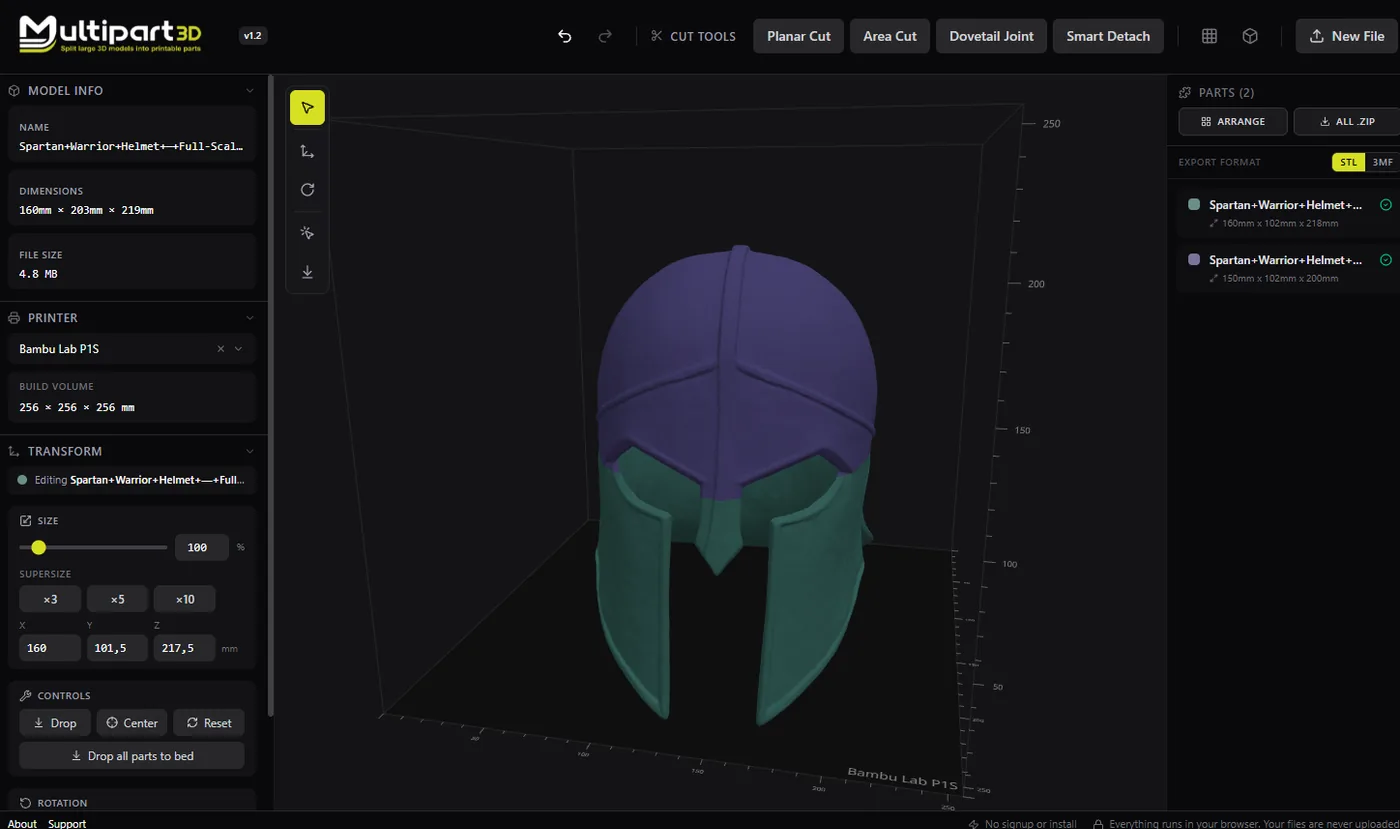
Multipart3D is a free browser app, and the first cut is the shortest path of the four tools that let you choose the seam. In our test the sequence from file to printable parts was: drop the STL, pick Planar Cut, drag the plane, confirm, export. There is no project setup, no printer profile to configure before the first cut, and no settings dialog to get through. Each part exports as STL or 3MF with one click, or all parts as one zip, ready for your slicer. There is no account and the file is not uploaded; processing stays in the tab (see privacy).
The workflow is built around controlling the seam. There are four cut types plus a color tool. Planar cut is the classic flat plane with both sides capped. Area cut limits that plane to a rectangle or circle, so you can open a hatch without bisecting the whole prop; Split3r and 3dsplitter.com have partial equivalents, neither as a dedicated tool. Dovetail cut puts interlocking teeth in the seam, with tooth size you match to your printer. Smart Detach lets you click a connected feature, such as an arm or a horn, and split it off without drawing a plane through the whole body. Separate by Color is beta: load a painted 3MF from Bambu Studio, Orca Slicer or PrusaSlicer and detach a paint region as its own part.
After a cut you can place connectors on the mating face: plugs (circle, square, hex, triangle), dowels, snap-fits (annular barb, cantilever hook, dual cantilever, split arrowhead), pin holes for a rod or skewer, and magnet pockets with presets such as 6×3, 8×2 and 10×3 mm, each with FDM or resin tolerances. A build-volume overlay shows whether a part will fit before you cut.
Where it falls short
- No automatic splitting to a build volume yet; it is on the roadmap. Split3r, 3dsplitter.com and stl-splitter.com all do this today. If the job is “make it fit the bed” with as little input as possible, any of those three is faster.
- Connectors are placed by hand, one at a time. That gives you control on a visor or a pauldron, and it is slower than the automatic pegs other tools drop on every face of a grid.
- It runs in a browser tab, so performance depends on the model and your device. Very high triangle counts still belong to a desktop tool with access to more RAM; Split3r is the stronger choice for very large meshes.
- No mesh repair or make-solid, no hollowing or shell, no engraved part numbers, and no OBJ import. Version 1.2 is still early.
- Separate by Color is beta. Tiny speckles detach worse than clean paint islands, so keep the original 3MF. Print a tolerance coupon before committing a 20-hour prop to a connector setting.
Best fit
A prop, cosplay piece or figure where seam placement matters and the parts have to go back together with dowels, dovetails or magnets, done in a browser tab without a project setup, and with the file staying on your device. It is not the best fit for hands-off production splitting of very large meshes.
Split3r
- Best suited for
- Production and print-farm splitting of large meshes
- Platform
- Desktop app (Windows 10/11; macOS and Linux, see notes)
- Price
- €60 Basic / €95 Full, lifetime license, excl. VAT
- Account required
- No web account; paid license with online activation
What it does well
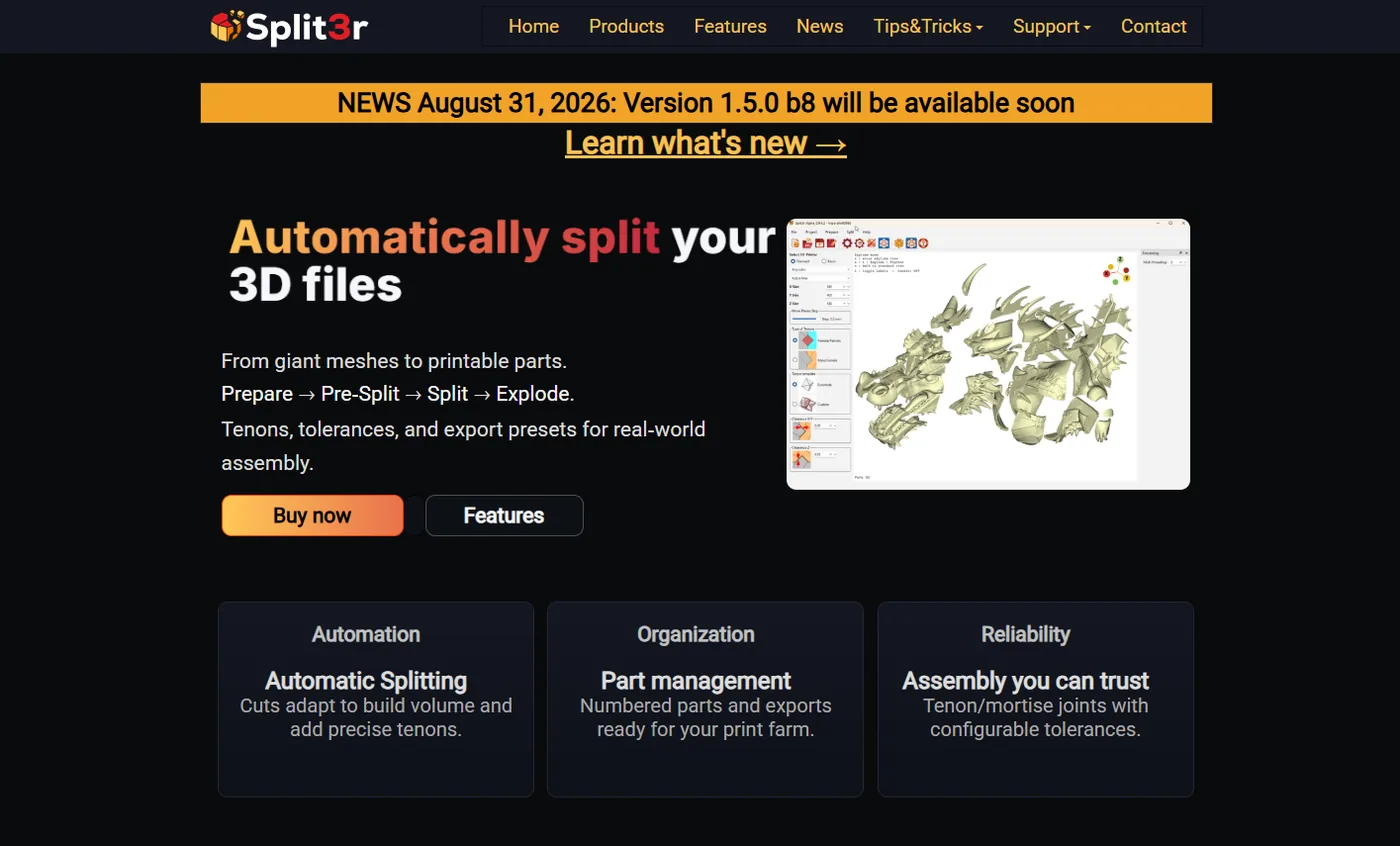
Split3r is Qualup SAS’s desktop splitter. The workflow is Prepare, Pre-Split, Split, Explode. You import STL or OBJ (colored 3MF from Bambu Studio and PrusaSlicer is documented in the 1.5 getting-started guide), repair, scale, optionally AutoShell, set printer limits, place planes, generate tenons, engrave part numbers, then inspect an explode view and export for the farm.
This is the tool that takes a 250 MB mesh seriously: a multi-threaded split, 158-plus printer presets, mortise and tenon types (round, rectangular, dovetail) with templates and tolerances, plus magnet and snap-fit options, a Workzone of versioned files, assembly images in one click, and a to-check folder for crumbs. Version 1.5 can keep color on 3MF fragments and tint cutting faces so the printer does not waste a filament change on a grey joint. For a production split, it is the strongest tool in this set.
Where it falls short
- It costs money: a lifetime license is €60 Basic or €95 Full, excl. VAT. The other three tools here are free.
- You have to install it, and activation needs the internet. The shop page still says Windows 10 and 11 only, with Linux and macOS planned, while the getting-started guide already documents a notarized macOS DMG and a Linux AppImage. Confirm the current installer for your OS before you buy.
- It is built for production splits. There is no click-to-detach for a single feature, and a bounded or area cut is not a dedicated tool. Magnets and snap-fits are there, but they sit inside a workflow with tenons, numbered parts and a Workzone. For one quick cut on a small prop, that is more process than you need.
Best fit
Large meshes, several printers, numbered parts and colored 3MF: a 1:1 statue split across a print farm overnight is the job it is designed for. If that is your workload, the license pays for itself.
3D Splitter
- Best suited for
- A free browser workspace with auto split, shelling and many cut styles in one place
- Platform
- Browser, no install
- Price
- Free (supporters link for tips)
- Account required
- No
What it does well
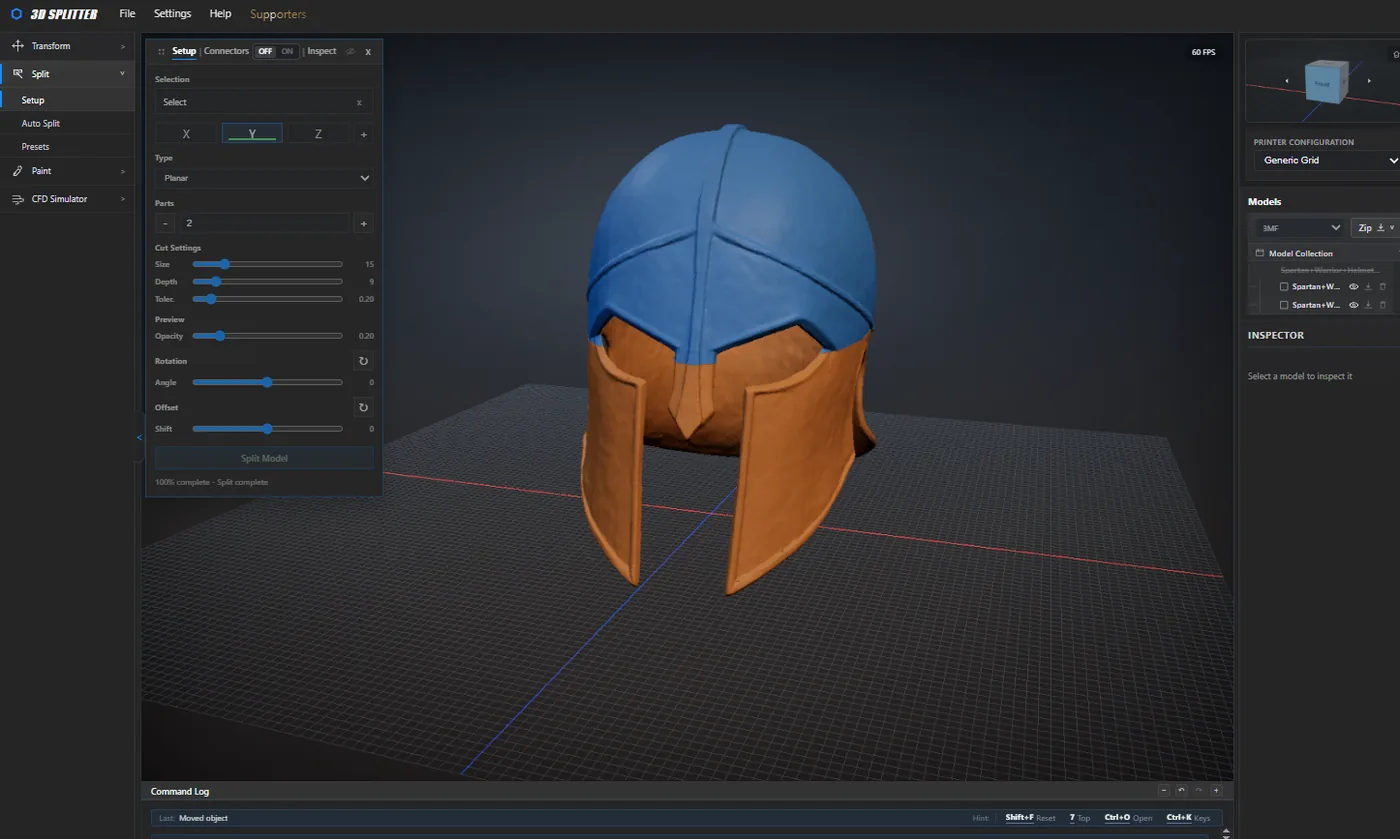
3dsplitter.com is a free browser workspace with a broad toolset. It has been shipping features at a clip since a November 2025 v1. By early September 2026 the live UI was on v2.8, with spline cuts, pyramid cuts, puzzle cuts, sectional planes, internal and external shell, 3MF import and export, a connectors toggle, auto split, printer presets, image painting, and an air and water CFD panel.
Its strength is breadth. You can import STL, OBJ or 3MF, move and scale, shell the mesh, pick printer presets (Ender 3, Bambu A1 / P1 / H2D, Prusa and more), auto-split, and export STL, OBJ or 3MF, including a zip. Puzzle and pyramid cuts give you interlocking seams without modeling teeth by hand. Sectional splitting lets you drag the width of a plane instead of only sliding it. Nothing here costs money and there is no login.
Where it falls short
- The interface is busy. The left rail already looks like a small CAD suite, and it is easy to get lost when you only want one cut.
- Connectors are an automatic toggle. There is no library of magnet pockets or snap-fits you place pin by pin.
- Painted 3MF colors did not load well in our test.
- Local processing is unverified. No login appears in the live UI, but we could not find a privacy policy that says files are never uploaded, and we did not packet-trace it. Commercial use is not stated on the site.
Best fit
A free browser tool when you want automatic splitting, shelling, OBJ support and several cut styles in one place, and you are willing to learn a denser interface. Check its policy yourself before loading a model you cannot share.
STL Splitter
- Best suited for
- Quickly chopping a model into bed-sized pieces
- Platform
- Browser, no install
- Price
- Free
- Account required
- No
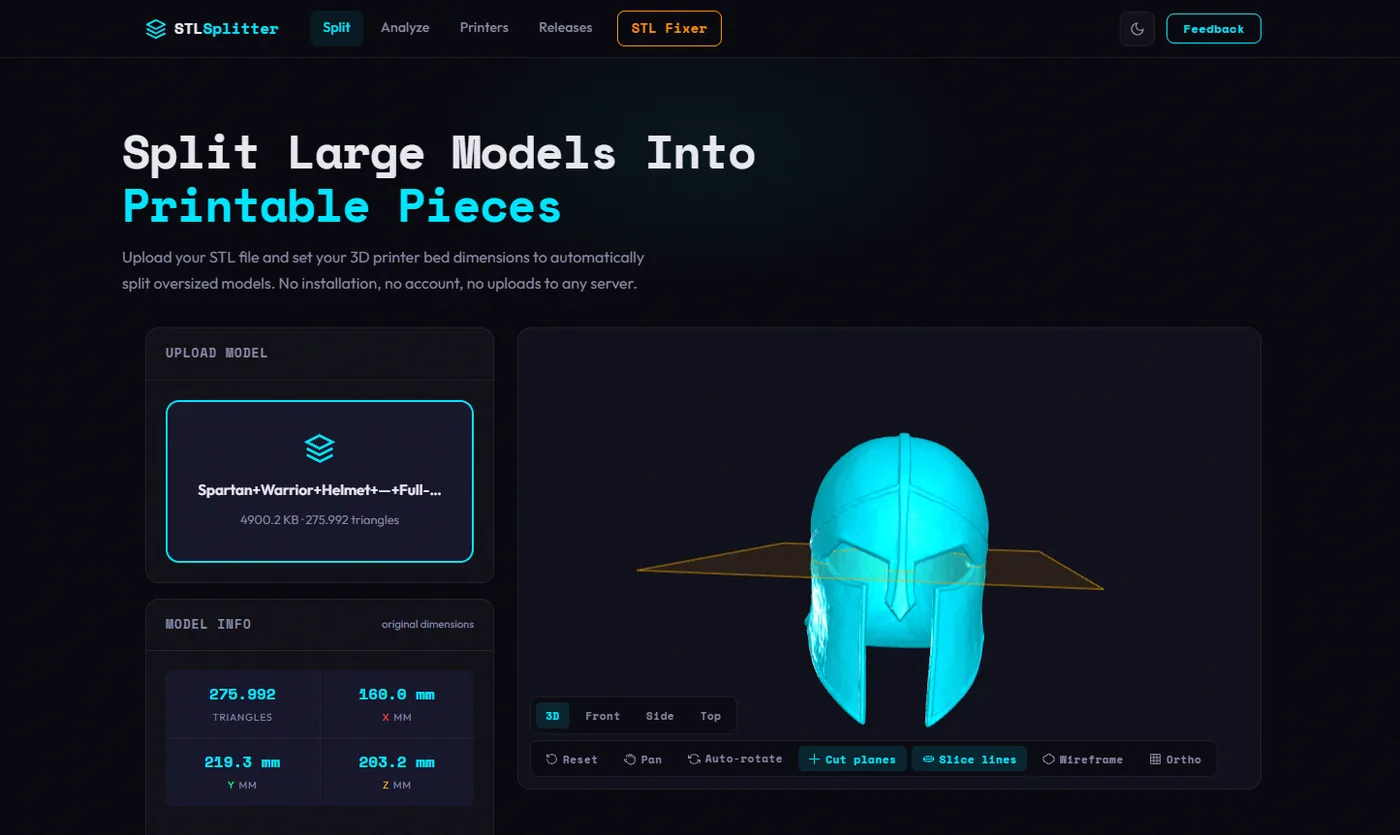
What it does well
stl-splitter.com is a focused free browser tool, and it works. Drop an STL or 3MF (up to 200 MB), pick one of 60-plus printer presets or type a bed size, and it divides the model into pieces that fit. You can add manual planes on X, Y and Z, cut into N pieces per axis, and scale before the cut. Processing stays local and there is no account.
Joints are male/female pegs, or female/female sockets you pin with your own dowel. Caps are repaired when the boolean leaves a gap, and complex leftovers get a warning to run slicer repair. Output is binary STL, including a zip of all pieces. Of the four tools, this is the simplest path from oversized model to bed-sized parts.
Where it falls short
- Cuts are axis-aligned only. There is no dovetail-as-a-cut, no area window, and no feature detach, so you cannot hide a seam or peel off a horn.
- Tilted cuts do not get joints, and small faces skip the peg with a warning. There are no magnets or snap-fits.
- Painted 3MF colors do not load. Commercial use is not stated on the site.
- The interface is the most basic of the four. That is fine for bed-fit splitting and limiting for anything else.
Best fit
The model just needs to fit the bed, glue or a dowel is an acceptable joint, and you want the quickest route with no account and local processing.
Multipart3D vs the alternatives
This section is our perspective as the makers of Multipart3D. We built it around a different workflow from the automatic splitters above. Instead of primarily asking the software to decide how a model should be divided, the focus is on giving you control over the seam and then preparing the resulting parts for reassembly. In practice the differences come down to five things.
- Manual control vs automation. Split3r, 3dsplitter.com and stl-splitter.com can partition a model to a build volume automatically; Multipart3D cannot yet. Multipart3D instead offers area cuts, dovetail cuts and Smart Detach so you choose where and how the model comes apart.
- Assembly features. Dovetail seams and magnet pockets are in Multipart3D and Split3r; 3dsplitter.com covers interlocking seams with puzzle and pyramid cuts but has no magnets; stl-splitter.com offers pegs only.
- Connector workflow. Multipart3D places connectors one at a time by hand with FDM or resin tolerances. Split3r generates tenons per cut from templates, and the two browser competitors add pegs automatically. Manual placement is slower on a grid and more precise on a single seam.
- Local processing. Multipart3D and stl-splitter.com process in the browser without an upload. Split3r is local on the desktop but activates online. 3dsplitter.com is unverified.
- Learning curve. Multipart3D and stl-splitter.com both work without setup. Multipart3D puts more cut types and a connector library behind that first step; 3dsplitter.com exposes more tools, but in a denser interface; Split3r front-loads printer and project configuration because it is built for repeat production runs.
- 3MF handling. Multipart3D and Split3r both work with painted 3MF; Multipart3D detaches a paint region as a part (beta), while Split3r keeps color on the fragments it generates. The other two did not preserve colors in our test.
If your job is closer to “make this fit the bed with as few clicks as possible”, one of the automatic splitters is the better starting point. If the job is deciding where a seam goes and how the pieces reconnect, that is what Multipart3D is built for.
Which STL splitter should you use?
Use Multipart3D if
- you want to decide where the seam goes: a flat plane, a bounded area, a dovetail, or a single feature detached by clicking it
- the parts must reassemble with placed dowels, snap-fits or magnet pockets, and you want FDM or resin tolerances on each one
- you have a painted 3MF and want to detach a paint region as its own part
- you want to go from file to exported parts without configuring a project or learning a CAD-style interface
- the file must stay on your device and you do not want an account or an install
Use Split3r if
- you split very large meshes for a print farm and need numbered parts, tenons, an explode view and versioned files
- you want automatic partitioning to a build volume with joints generated as part of the split
- you work with colored 3MF and want the color kept on the fragments
- a paid desktop license is acceptable for your workload
Use 3D Splitter if
- you want a free browser tool with automatic splitting, shelling and OBJ import and export in one place
- puzzle or pyramid interlocking seams are enough and you do not need magnets or hand-placed connectors
- you are comfortable with a denser interface and have checked its file-handling policy for the models you load
Use STL Splitter if
- the model only has to fit the bed and axis-aligned cuts are fine
- automatic pegs or your own dowels are an acceptable joint
- you want the simplest possible tool with no account and local processing
None of these tools is best at everything. The right STL splitter depends mainly on whether you value automatic splitting, precise cut placement, assembly features, 3MF support, privacy or simplicity.
FAQ
What is the easiest way to split an STL file?
It depends on what "split" means for your job. If the model only has to fit the printer bed, an automatic splitter such as stl-splitter.com or 3dsplitter.com divides it into bed-sized pieces in the browser with almost no setup, and Split3r does the same on the desktop. If you need to decide where the seam goes, Multipart3D lets you place a planar, area, dovetail or smart-detach cut and export the parts in a few clicks, with no install, account or upload. For a single flat cut on the way to G-code, the cut tool inside Bambu Studio, Orca Slicer or PrusaSlicer is often enough.
Can you split an STL without Blender?
Yes. All four tools in this comparison split STL files without Blender or CAD. Multipart3D, 3dsplitter.com and stl-splitter.com run in the browser with nothing to install. Split3r is a desktop app you install and license. Most slicers also include a basic cut tool for one flat plane.
Which STL splitter is best for large models?
For very large meshes and production splits, Split3r is the strongest option in this set: it is a desktop app with a multi-threaded split that is built to handle a 250 MB mesh, and it adds numbered parts and tenons as part of the workflow. Browser tools depend on your device's RAM. stl-splitter.com states a 200 MB file limit. Multipart3D handled our oversized helmet, but very high triangle counts are still better served by a desktop tool. We did not run a formal size benchmark across all four.
Can an STL splitter add connectors?
Yes, but the approach differs. Multipart3D lets you place plugs, dowels, snap-fits, pin holes and magnet pockets by hand on the mating faces, with FDM or resin tolerances. Split3r generates tenons (round, rectangular, dovetail) with templates and also offers magnet and snap-fit options inside its production workflow. stl-splitter.com and 3dsplitter.com add pegs automatically on each cut face, which is quick on a grid and less flexible when you only want two magnets on a visor.
Can you split a 3MF file without losing colors?
Partly, depending on the tool. Multipart3D imports painted 3MF from Bambu Studio, Orca Slicer and PrusaSlicer, and Separate by Color (beta) can detach a painted region as its own part. Split3r 1.5 documents colored 3MF import and keeps color on the split fragments. In our test, painted 3MF colors did not load in stl-splitter.com and did not load well in 3dsplitter.com. If color separation is the whole job, split3mf.com is a specialist that explodes a painted 3MF into color parts; it does not split an oversized STL to a bed.
Is it safe to upload STL files to a splitter?
Avoid uploading a paid, unreleased or client model if you can. Multipart3D processes files locally in the browser tab; nothing is uploaded. stl-splitter.com also states that processing stays local and needs no account. Split3r runs on your own PC but needs the internet for license activation. For 3dsplitter.com we could not find a policy stating that files never leave the device, and we did not packet-trace it, so we list its local processing as unverified.
What is the difference between an STL splitter and a slicer?
A splitter edits the mesh and writes new STL or 3MF files that you then slice as usual. A slicer cut is a one-shot plane on the way to G-code, and it is the right first stop when you need one flat seam and a glue face. A dedicated splitter is worth opening when that one plane is not the job: several seams, a repeating joint, a feature you want to peel off, a painted 3MF that should become separate parts, or a model you will come back to later.
Sources
- multipart3d.com and feature pages, including planar, area, dovetail, smart detach, color-separate, connectors, privacy, FAQ (retrieved 3 Sep 2026).
- stl-splitter.com live tool and FAQ.
- split3r.com, getting started, Basic shop, Full shop, and the Split3r 1.5.0 release notes.
- 3dsplitter.com live UI (v2.8 changelog visible 3 Sep 2026): split, connectors, auto split, shell, spline/pyramid/puzzle cuts, STL/OBJ/3MF export, printer presets, no login.
- split3mf.com live UI (open beta, painted 3MF color split, retrieved 3 Sep 2026).
Last researched 3 September 2026. Product UIs move. Recheck pricing and OS support before you buy Split3r.