
Features/Smart Detach
Separate a part from an STL or 3MF model
Click a feature and peel a whole piece off cleanly. Built for parts that should print separately.
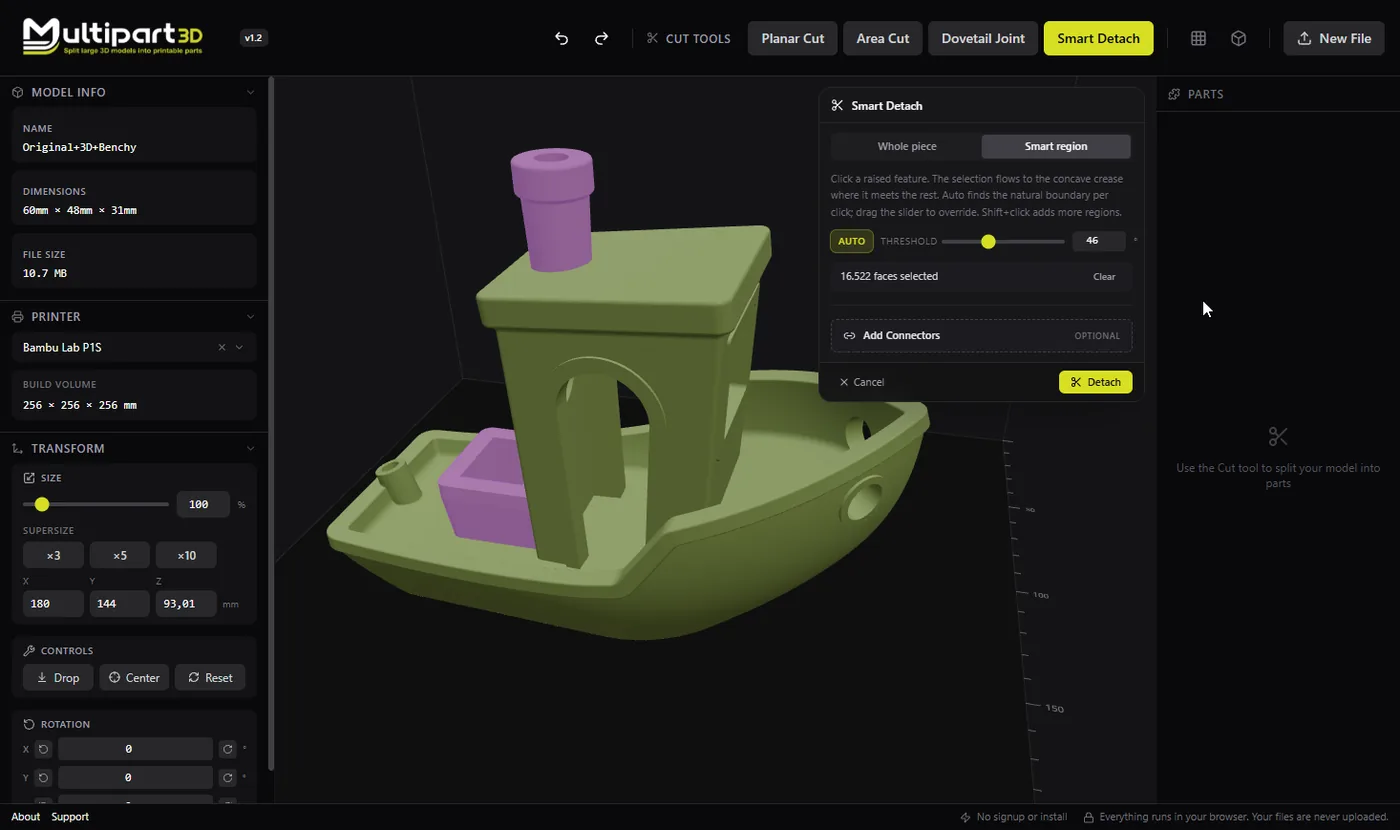
When to use it
- Arms, horns, antennas, or accessories print better separately
- You want fewer supports by laying a detached piece flat
- A protruding detail keeps breaking and should be replaceable
- Manual planes would take too long for an obvious feature boundary
How it works
- Load the model and select Smart Detach.
- Click the feature you want to separate.
- Review the selection flood and resulting parts.
- Commit, add connectors if the piece must remount, then export.
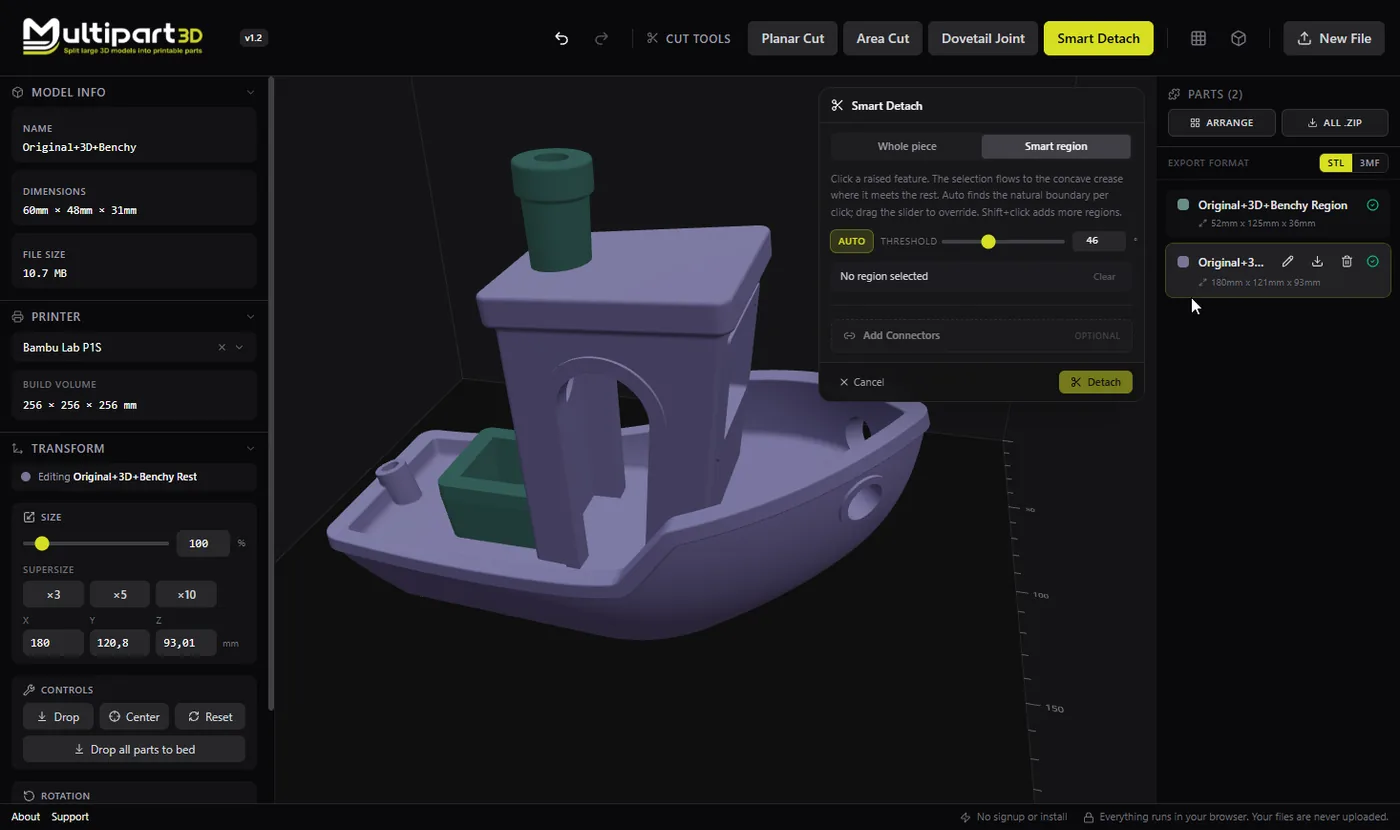
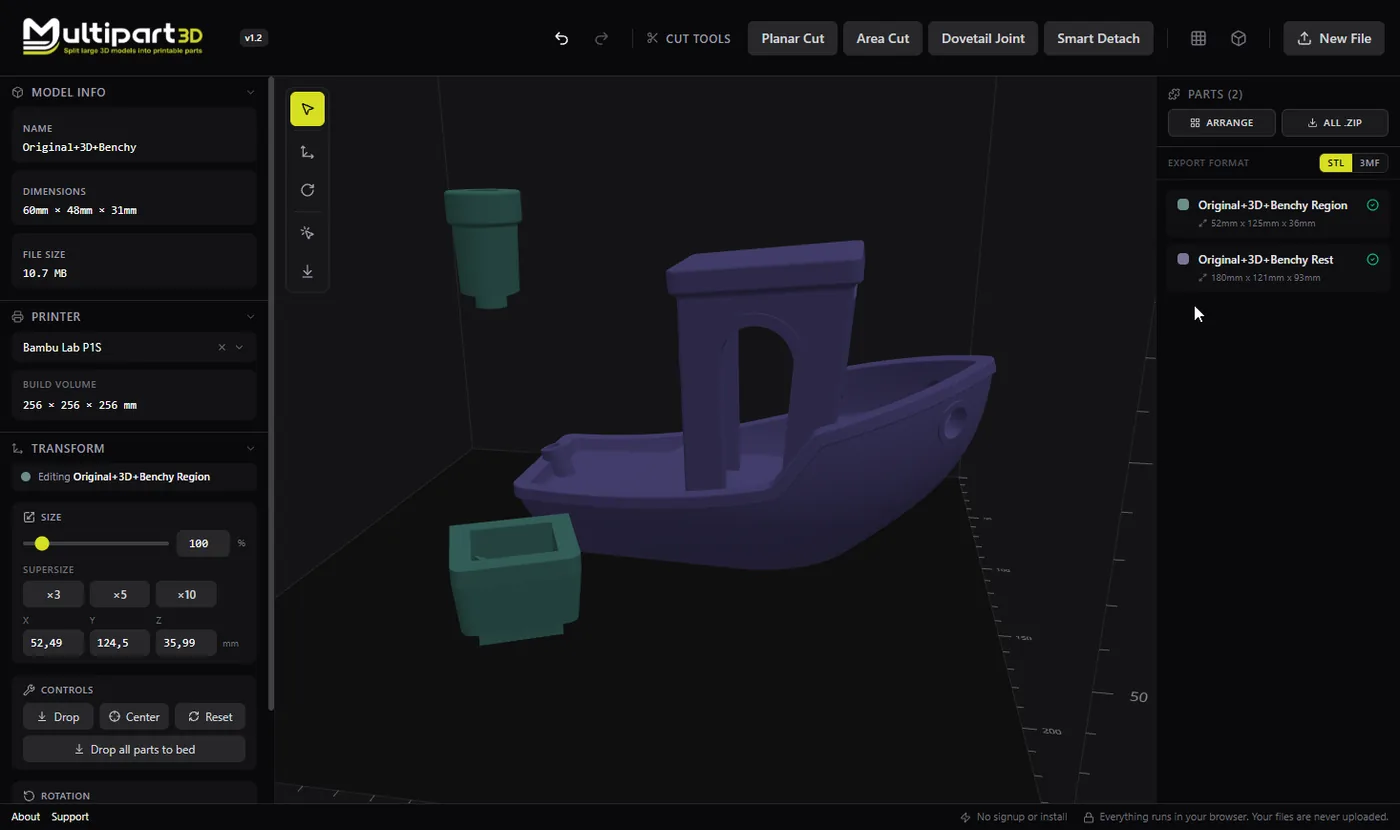
Smart Detach is aimed at semantic splits: not an arbitrary plane through the mesh, but a feature you can point at. That matches how makers actually think (“print the arm separately”) without redrawing the boundary in CAD.
Multipart3D performs the selection and mesh work locally. You keep iterating in the browser until the detached piece and the body both look printable.
When color regions define the feature (painted armor vs skin), also look at Separate by Color. When the boundary is a clean plane, Planar or Area Cut may be simpler.
The click starts a flood across connected triangles. Convex and flat edges are always crossed. A concave crease stops the flood unless it is shallower than the threshold, which is a degree value from 5 to 120. Auto picks a stable boundary for that click. Lower the threshold to stop at a gentle valley; raise it to flow across a deeper one. It works on a protrusion with a neck: the Benchy chimney, a horn, an antenna, a handle. A smooth blend with no crease to stop on will not give you a clean piece. The flood cannot jump a gap, so two objects that only happen to sit in the same STL stay one selection unless they share triangles.
Tips
- Zoom in and click a triangle clearly on the feature, not on the body.
- If the flood spills, adjust or try a different seed point.
- Plan how the detached part remounts, using pegs, sockets, or magnets.